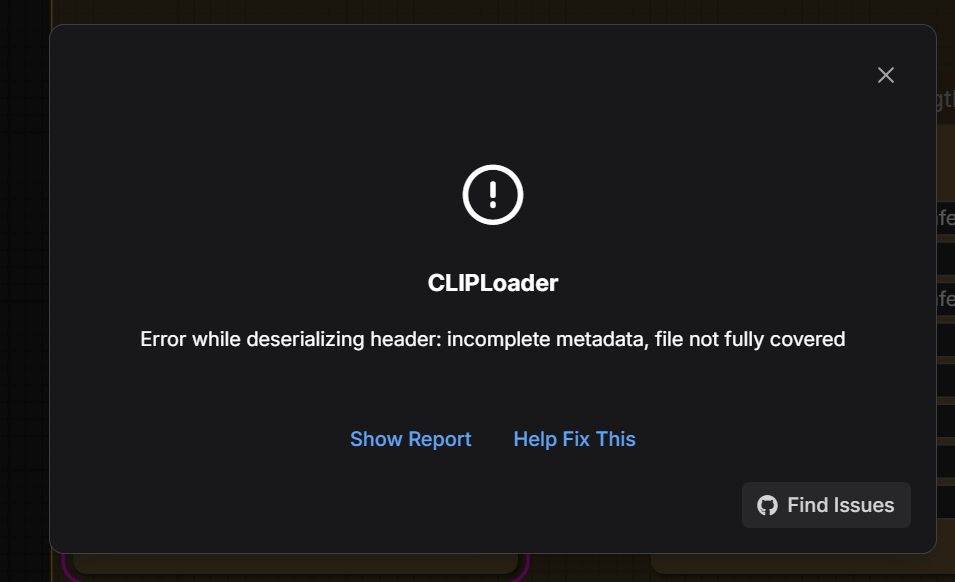
I can’t narrow down the exact cause, but…
You are hitting a model file load failure, not a “workflow logic” problem.
Your screenshot error text is the safetensors loader failing while a loader node (often CLIPLoader or a text encoder loader) tries to read a .safetensors file and discovers the file on disk is incomplete or not actually a safetensors model. That exact error string shows up in ComfyUI reports when a model file is truncated or corrupt. (GitHub)
If you tried multiple workflows (WAN 2.2, Qwen, etc.) and “none run,” that strongly suggests a shared dependency file is bad (text encoder, VAE, diffusion model). Once a loader hits a bad file, the whole run stops immediately.
Quick safety note (because of what you wrote)
If “pop myself in the head” is more than venting, treat it as urgent and get real-time help now:
- US: call or text 988. (988 Lifeline)
- UK/ROI: Samaritans 116 123. (Samaritans)
- Japan support for non-Japanese residents: Yorisoi Hotline 0120-279-338 (English support is commonly described as available after prompts). (I’m going to show you some examples of what I’m going to show you in the next video.)
Now the fix.
What this error means, in beginner terms
What ComfyUI is doing
ComfyUI workflows are node graphs. Some nodes “compute,” and some nodes load files:
- base checkpoints
- text encoders (CLIP, T5, etc.)
- VAEs
- LoRAs
If a loader node cannot read its file, ComfyUI stops and shows “Prompt execution failed.”
What safetensors is doing
safetensors files have a header that lists tensor names and byte offsets. If the file is cut off early, the offsets in the header no longer match the bytes on disk, and you get errors like:
- “Error while deserializing header: incomplete metadata, file not fully covered”
- “MetadataIncompleteBuffer”
ComfyUI issue reports explicitly call this out as: “The safetensors file is incomplete. Check the file size and make sure you have copied/downloaded it correctly.” (GitHub)
The underlying safetensors error definition also matches “file buffer not fully covered,” which is what a truncated file looks like. (Hugging Face)
Why this happens a lot on RunPod
1) Downloads silently fail for multi-GB models
WAN and many “Qwen workflows” pull huge files. Browser downloads and flaky connections regularly create partial .safetensors.
2) You ran out of disk mid-download
On RunPod, persistent storage is typically mounted at /workspace for Pods. If downloads go into the wrong place or the disk fills, you get partial files. (Runpod Documentation)
3) You accidentally downloaded a Git LFS “pointer file”
Some repos store large weights with Git LFS. Without the LFS fetch, you may end up with a small text “pointer” instead of real weights. GitHub’s docs explain that Git LFS uses pointer files that reference the real file stored elsewhere. (GitHub Docs)
Those pointer files often start with a line like version https://git-lfs.github.com/spec/v1 (you can literally open them and see it). (GitHub)
The fix recipe that works in most cases
Do this once, carefully, and you usually stop the repeating errors.
Step 1: Find the exact broken file from ComfyUI
In the red error popup, click Show report.
Look for two things:
- Node type (CLIPLoader, VAE Loader, etc.)
- A line that includes File path: …/something.safetensors
ComfyUI issues show the file path right in the report, and the “incomplete file” warning is tied to that exact path. (GitHub)
Step 2: Confirm you are actually using persistent storage
On RunPod Pods, your persistent disk or network volume is typically at /workspace. (Runpod Documentation)
RunPod also notes that with a network volume, terminating and recreating a pod preserves data in /workspace. (Runpod Documentation)
So, make sure your ComfyUI install and models live under:
/workspace/ComfyUI/...
Step 3: Check disk space before redownloading
RunPod’s own troubleshooting guidance starts with checking available space.
Copy-paste:
df -h
du -sh /workspace
If /workspace is close to full, delete unused model files first (old checkpoints, duplicate VAEs, old outputs).
Step 4: Inspect the broken file in a dumb, reliable way
Once you know the exact file path from Show report:
ls -lh "/path/from/report/file.safetensors"
head -n 5 "/path/from/report/file.safetensors"
Interpretation:
- If size is tiny (KB/MB when it should be hundreds of MB or GB), it is almost certainly incomplete.
- If
headshowsversion https://git-lfs.github.com/spec/v1, you have a Git LFS pointer, not weights. (GitHub Docs)
Step 5: Delete the bad file and re-download it cleanly
Delete only the identified file:
rm -f "/path/from/report/file.safetensors"
Then re-download using a method that is less likely to truncate.
A solid option is Hugging Face Hub download tooling. HF documents how local_dir downloads replicate the repo structure and create a .cache/huggingface metadata folder under that directory. (Hugging Face)
HF also documents how to disable symlinks (local_dir_use_symlinks=False) if you want the file physically stored where you point it. (Hugging Face)
If you used ComfyUI-Manager to download models and it produced a broken file, re-download from HF directly or re-try after freeing disk space. The key is: the re-downloaded file must have the correct full size.
Step 6: Refresh the ComfyUI UI and restart backend if needed
Even when the file is fixed, the dropdown lists may not update until refresh.
ComfyUI’s built-in ClipLoader documentation explicitly says you need to refresh the frontend to see newly saved models. (ComfyUI)
WAN 2.2 specific: put files in the exact folders WAN expects
WAN 2.2 workflows have strict file placement. The official ComfyUI WAN 2.2 models page lists required files and where they must go:
umt5_xxl_fp8_e4m3fn_scaled.safetensors→ComfyUI/models/text_encoders/wan_2.1_vae.safetensorsorwan2.2_vae.safetensors→ComfyUI/models/vae/(depends on model)- diffusion model safetensors →
ComfyUI/models/diffusion_models/(Comfy Anonymous)
If any one of these is partially downloaded, you can get the same safetensors header error.
Also note: ClipLoader detects encoders in both models/text_encoders/ and models/clip/. That matters if your workflow uses CLIPLoader rather than a WAN-specific text encoder loader. (ComfyUI)
Qwen workflows: two common failure modes
“Qwen workflow” can mean different things in ComfyUI land:
- A workflow that uses Qwen-related custom nodes and downloads large multi-part weights.
- A workflow that still depends on the same core ComfyUI model folders (encoders, etc.)
If you keep seeing safetensors header errors, treat it as the same issue: a broken weight file.
If you suspect a custom node is the real problem, ComfyUI’s official troubleshooting flow says to:
- test a default workflow
- disable all custom nodes and try again (ComfyUI)
That quickly separates “bad model file” from “bad node install.”
How to test your LoRA without touching WAN/Qwen
A LoRA is not a full model. It modifies a base model. So you test it with a simple, known-good SD workflow first.
ComfyUI’s LoRA tutorial gives the baseline concept and workflow. (ComfyUI)
Practical checklist:
- base checkpoint in
ComfyUI/models/checkpoints/ - LoRA in
ComfyUI/models/loras/ - a minimal workflow: Checkpoint loader → LoRA loader → sampler → decode → save
If your basic SD workflow runs, your ComfyUI install is healthy. Then you move to WAN/Qwen.
The most likely “root cause stack” for your case
Given your description (RunPod, many installs, many workflows fail, error looks like safetensors header):
- One or more core model files is truncated due to disk filling or unreliable download. (GitHub)
- Files might not be in
/workspace, so you are repeatedly rebuilding or copying partial files. (Runpod Documentation) - Less common but real: you cloned a repo and got Git LFS pointers instead of weights. (GitHub Docs)
Fixing (1) plus ensuring (2) is correct solves most “nothing runs” situations.
What to paste here if you want a precise answer with zero guessing
Paste the text from Show report, specifically:
- the File path line
- the Node type line
Then the correct action becomes deterministic: “Delete X in folder Y, re-download Z, here is the expected size range, here is the correct WAN folder.”
Summary bullets
- Your error is almost always a corrupt or incomplete
.safetensorsfile, not a workflow logic problem. (GitHub) - Use Show report to identify the exact broken file path, delete that file, and re-download it. (GitHub)
- On RunPod Pods, keep everything under
/workspaceand confirm you have disk space. (Runpod Documentation) - WAN 2.2 has strict model folder expectations. Follow the official file list and locations. (Comfy Anonymous)
- Test your LoRA on a simple SD workflow first, per ComfyUI’s LoRA tutorial. (ComfyUI)

Seems CLIPs are broken… Re-download them?
Yes. Your report shows it clearly: the failing node is DualCLIPLoader, and the exception is a safetensors header read error:
- Node Type:
DualCLIPLoader - Exception:
safetensors_rust.SafetensorError - Message:
Error while deserializing header: incomplete metadata, file not fully covered
That specific message almost always means: the .safetensors file DualCLIPLoader is trying to load is incomplete or not a real safetensors model file (partial download, corrupted copy, Git LFS pointer, etc.). ComfyUI maintainers commonly summarize this as “the safetensors file is incomplete, check file size, re-download.” (GitHub)
At the safetensors level, this error corresponds to “metadata offsets do not fully cover the file buffer,” which matches a truncated/malformed file.
Background: what DualCLIPLoader is doing
Some model families use two text encoders (two CLIPs). DualCLIPLoader is the node that loads both so prompts can be encoded correctly. Third-party node docs describe it as “load and use two different CLIP models simultaneously.” (ComfyUI Wiki)
In practice:
- SDXL typically uses CLIP-L and CLIP-G (two separate weight files). People troubleshooting SD3/SDXL in ComfyUI regularly mention “make sure you have both CLIP L and CLIP G downloaded and placed in the
clip/folder.” (Hugging Face)
So if either CLIP file is bad, DualCLIPLoader crashes and your whole workflow stops immediately.
Why this breaks “every workflow” on RunPod
If you keep using workflows that start with DualCLIPLoader (common in SDXL graphs, and in some “starter” templates), then every run fails at the first loader node.
RunPod makes this worse because:
- model files are huge
- downloads can silently truncate
- disk space issues can create half-written files
Fix: replace the broken CLIP file(s)
You do not fix this by changing prompts or reinstalling nodes. You fix it by ensuring the CLIP weight files are valid and complete.
Step 1: Identify which CLIP file is selected in your DualCLIPLoader node
In the ComfyUI UI:
- Click the DualCLIPLoader node in your workflow.
- Look at the dropdowns (usually two of them). They will show the filenames it is trying to load (often something like
clip_l.safetensorsandclip_g.safetensorsfor SDXL).
Those exact filenames are what you must verify on disk.
If you cannot see the node in the workflow right now, you can also scroll further down the error report. Many ComfyUI “incomplete safetensors” errors include a File path: line in the report, showing the exact file path of the broken file. (GitHub)
Step 2: Check the files on disk (size + content)
On RunPod, open a terminal and run:
ls -lh /workspace/ComfyUI/models/clip
Then inspect the specific file(s) your DualCLIPLoader is pointing to:
# Example, replace names with yours
ls -lh /workspace/ComfyUI/models/clip/clip_l.safetensors
ls -lh /workspace/ComfyUI/models/clip/clip_g.safetensors
What you are looking for:
- 0 bytes or very small size relative to what you expect
- a file that looks “present” but is incomplete (common cause of your exact error)
Check for the Git LFS “pointer file” trap
If you ever got models via git clone, you might have downloaded a pointer instead of real weights. Git LFS stores small pointer files that reference large objects elsewhere. (Reddit)
Run:
head -n 5 /workspace/ComfyUI/models/clip/clip_l.safetensors
If you see something like:
version https://git-lfs.github.com/spec/v1
that file is not a model. It is a pointer. That will absolutely produce loader errors. (Reddit)
Step 3: Delete the broken file(s)
Delete only the file(s) you confirmed are wrong:
rm -f /workspace/ComfyUI/models/clip/clip_l.safetensors
rm -f /workspace/ComfyUI/models/clip/clip_g.safetensors
Step 4: Re-download the CLIP files cleanly
You have two workable approaches:
Option A: Re-download via ComfyUI-Manager (simplest)
If your workflow/template tells you exactly which CLIP files to install, use Manager’s model downloader and re-download them.
This works if the initial download was just interrupted.
Option B: Re-download from the source that your workflow recommends (more reliable)
Many workflow authors provide exact links (often Hugging Face). The important part is: download the exact filenames expected and place them in /workspace/ComfyUI/models/clip/ (or whatever folder the workflow expects). People troubleshooting SD3/SDXL specifically call out having both CLIP L and CLIP G in the clip/ folder. (Hugging Face)
If you want, paste the workflow JSON or tell me what base model it is (SDXL vs SD3 vs something else), and I will tell you exactly which CLIP files you need.
Step 5: Restart ComfyUI
Restart the ComfyUI process after replacing model files. Then reload the browser page.
Also do this once: confirm you are not out of disk
Truncated .safetensors files happen constantly when disk fills mid-download. Check:
df -h
If /workspace is close to full, free space first (delete unused checkpoints, duplicate models, old outputs), then re-download.
What about WAN 2.2 and Qwen workflows?
Important context: WAN 2.2 video workflows often use T5-based text encoders, not SDXL dual-CLIP. So if your current error report shows DualCLIPLoader, you were likely running a workflow that is SDXL-like (or at least uses dual CLIP), not a pure WAN node set.
Still, the core idea is identical:
- If a workflow’s encoder file is truncated, you get the same safetensors “incomplete metadata” crash.
ComfyUI issue reports show this pattern for other loaders too (example: WAN T5 encoder loader). (GitHub)
So first fix your DualCLIPLoader. Then tackle WAN/Qwen separately.
If you want the “no guessing” answer
Reply with either:
- A screenshot that shows the DualCLIPLoader node settings (the two dropdown filenames), or
- The full error report text (scroll down if needed) that includes File path:.
Then I can tell you exactly which file is bad and what to replace.
Summary
- Your report confirms it is a DualCLIPLoader failure, caused by an invalid/incomplete
.safetensorsCLIP file. - Fix is: identify which two CLIP files the node is loading, verify size and check for Git LFS pointer content, delete bad files, re-download cleanly, restart ComfyUI. (GitHub)